Upload Playbook
Detailed walkthrough for uploading videos in MediaOps
Start with the visual flow below. The complete step-by-step text walkthrough is right after the screenshots.
1. Add draft rows from the spreadsheet
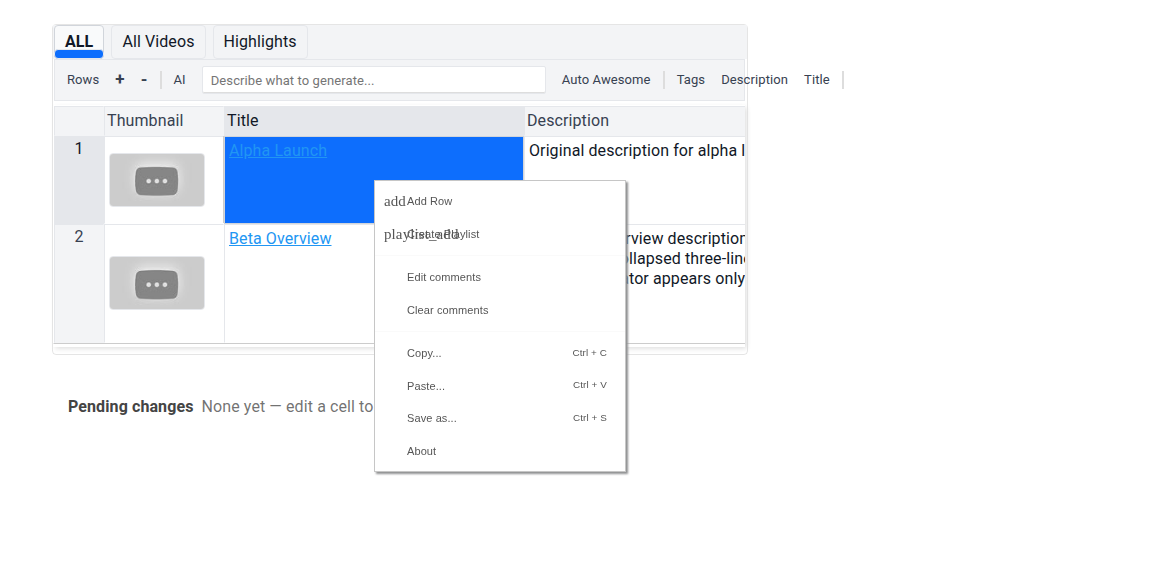 Create one draft row for each video you want to upload.
2. Select rows and open editing context
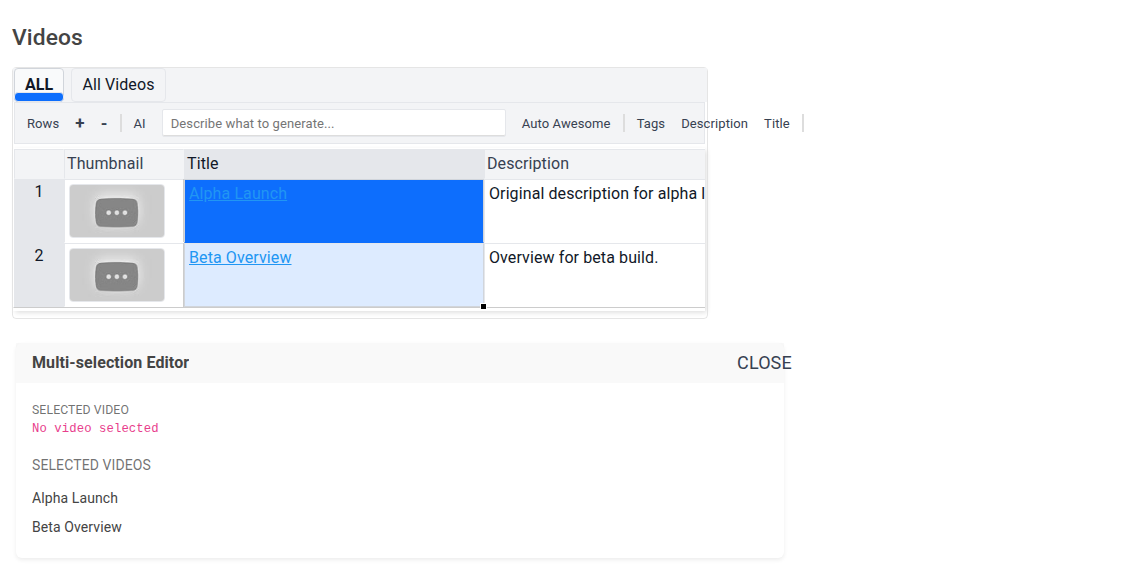 Select the rows you want to edit, then set metadata from the side panel/editor.
3. Review pending changes before apply
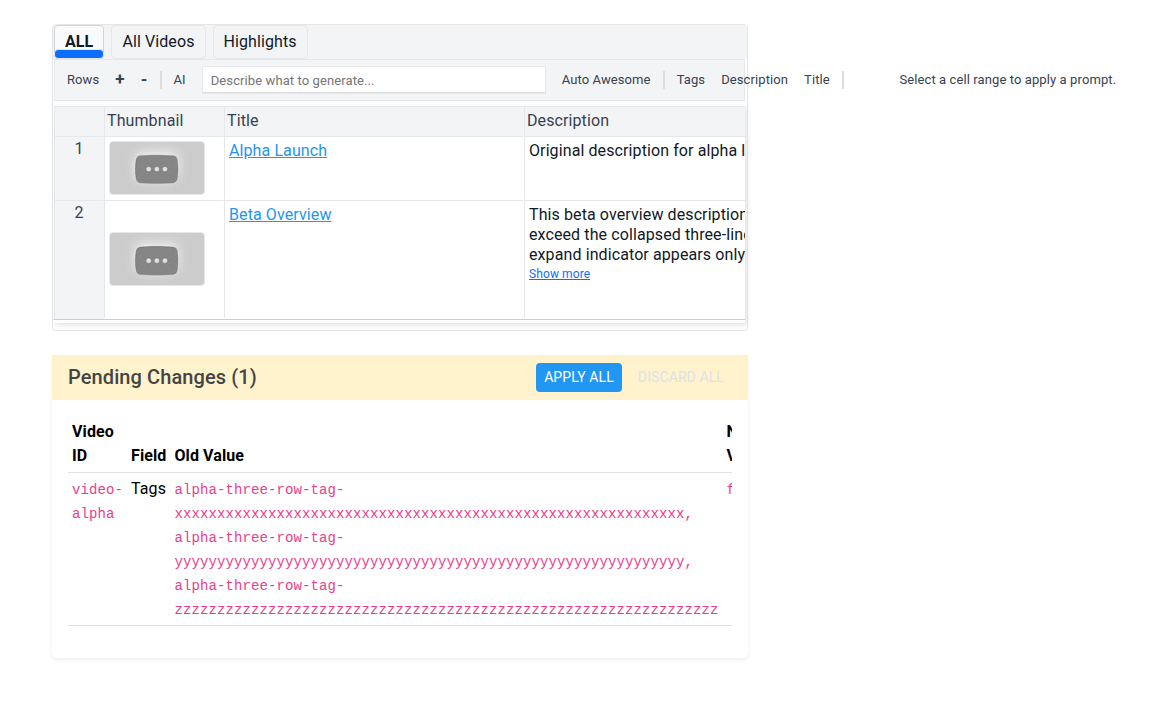 Every upload/metadata change is queued first and visible in Pending Changes.
4. Apply the grouped upload action
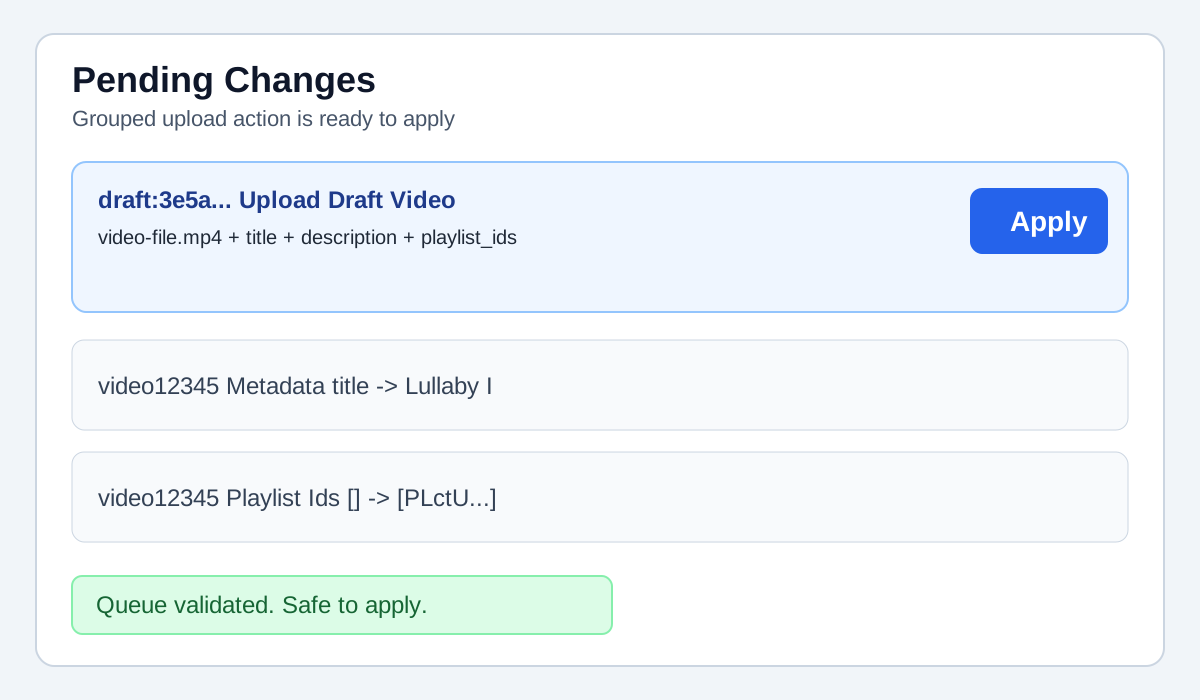 Run the grouped draft upload action so file upload and metadata execute together.
5. Monitor running status and progress
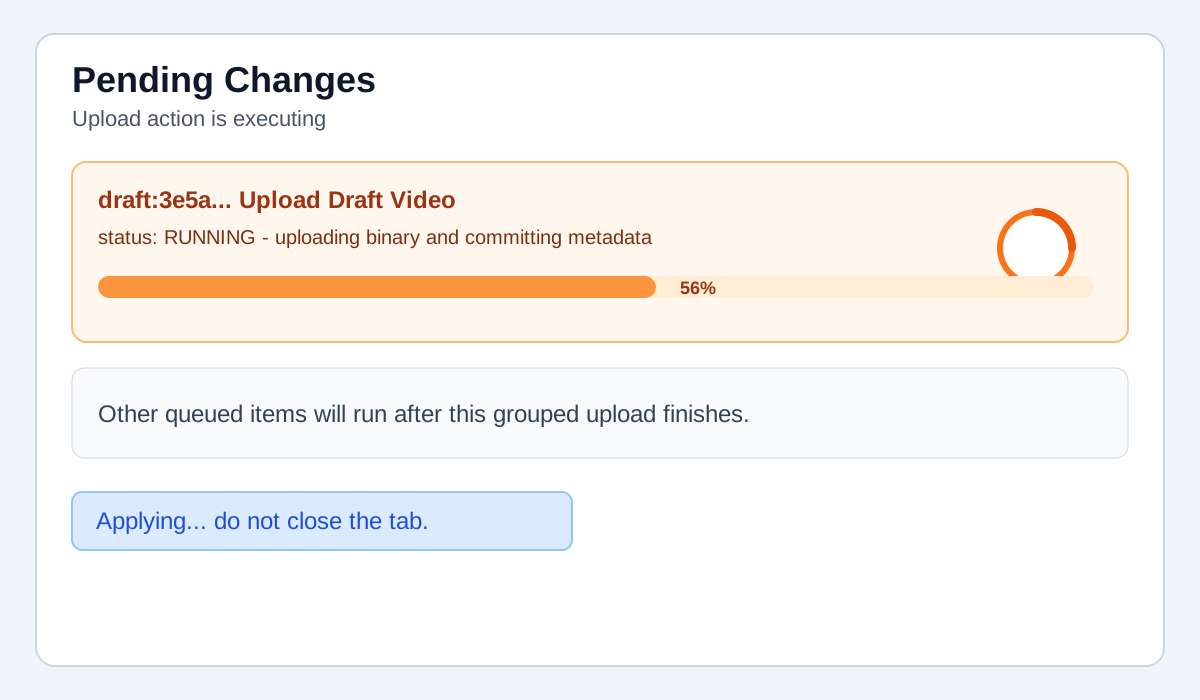 While applying, watch the running state until the grouped action reaches completion.
6. Confirm draft row promotion after success
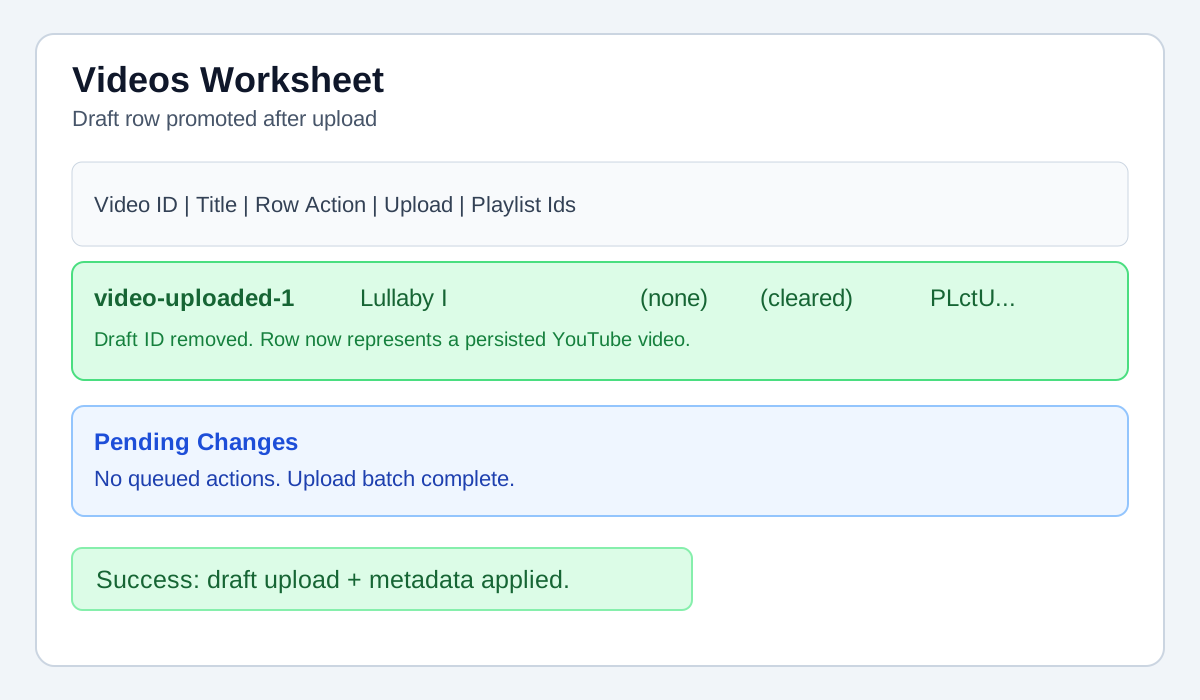 Verify the draft ID is replaced with a persisted video ID and Pending Changes is clear.
7. Resolve first failure and retry
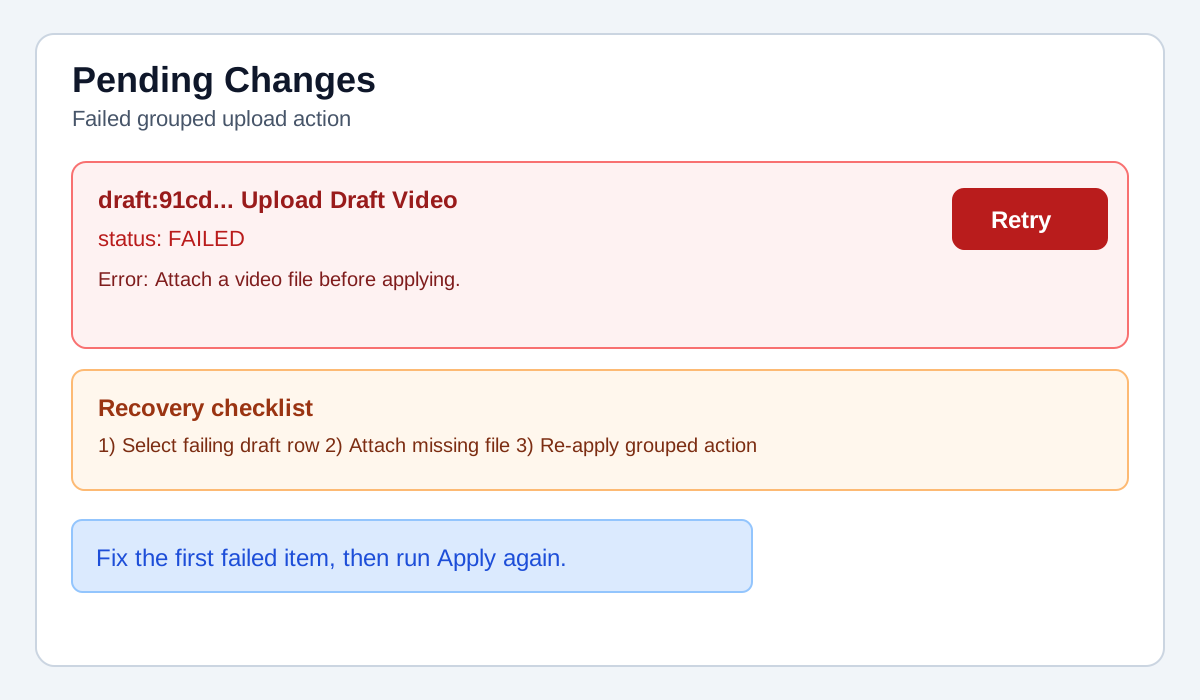 If a grouped upload fails, fix the first error on that row and retry Apply.
Supported operations and detailed flows
Use this page as the operational reference for what MediaOps supports today and how to run each workflow safely through Pending Changes.
Operations currently supported
- Catalog review in worksheets: open ALL videos or playlist-specific tabs, sort/filter, and inspect values before staging edits.
- Metadata updates: stage Title, Description, Tags, Privacy, Made for Kids, Embeddable, and Playlist membership changes before applying.
- New video uploads: add draft rows, attach local video files, set metadata, and convert drafts into uploaded YouTube videos through Apply.
- Thumbnail updates: attach custom thumbnails for existing or newly uploaded videos through the same pending pipeline.
- Playlist management: create playlist tabs, rename playlist tabs, and control tab visibility using playlist settings toggles.
- Delete operations: queue deletions and apply them through the same change execution surface used for updates and uploads.
- Channel/account controls: switch channels and manage playlist display settings from the account/settings menu.
- Subtitles tool: generate subtitle jobs from audio + transcript inputs and download produced outputs when complete.
- Text Video tool: generate text-based video renders from text input with optional audio/background inputs.
- Frame Picker tool: upload a source clip, navigate the timeline, and export selected frames.
- TelePrompter tool: import local audio/video files, arrange track audibility with mute/solo, and scrub a shared playhead before downstream editing.
How pending changes works
- Every operation is queued first; no API write is executed until you apply.
- Pending Changes is the source of truth for staged actions and execution status.
- You can review, discard, or apply actions in a controlled sequence.
- Complex actions (for example draft upload + metadata) are grouped into one apply unit so they run coherently.
Single-video upload flow
- Open the Videos page.
- Create one draft row by clicking Add Video (or using the row context menu).
- Select the draft row so the side editor opens.
- In Draft file, click Attach video file and pick a local
video/* file.
- Set metadata: Title, Description, Tags, Privacy, Made for Kids, Embeddable, and Playlist membership.
- Optionally attach a custom thumbnail.
- Review the grouped pending upload action in Pending Changes.
- Click Apply for that item (or Apply All if this is your only staged change).
- Wait for completion status in Pending Changes.
- Verify the draft ID is replaced with a real YouTube video ID and the row is now a persisted video row.
Multiple-video upload flow
- Add one draft row per video you plan to upload.
- Open each draft row and attach the corresponding local file.
- Set per-row metadata and playlists for each draft row.
- Optionally attach thumbnails for rows that need custom artwork.
- Open Pending Changes and confirm each draft row has a complete grouped upload action.
- Click Apply All to execute the full queue.
- Monitor statuses until all grouped actions complete.
- Confirm every draft row has been promoted to a persisted uploaded video.
Metadata-only bulk edit flow
- Select existing rows you want to update.
- Edit fields in the sheet or side panel.
- Review staged changes in Pending Changes.
- Apply selected items or Apply All.
- Verify row values and playlist tabs after refresh.
Playlist-management flow
- Create a playlist from the tab bar when needed.
- Rename tabs to keep playlist naming consistent.
- Assign/remove playlist membership on video rows via staged updates.
- Use Settings toggles to show empty playlists or hide third-party-only playlists based on your workflow.
- Apply queued playlist changes from Pending Changes and verify worksheet tab results.
Troubleshooting
- If Apply shows
Attach a video file before applying, the draft row is missing its file attachment.
- If uploads are staged but not executed, check Pending Changes for a running or failed grouped action and resolve the first failure before retrying.
- If playlist tabs are unexpectedly hidden, review both playlist visibility toggles in Settings.